If you’ve tried to use Claude Code primitives, you’ve probably felt the confusion. Should this be a Skill? A slash command? Wait, maybe a hook? Or is this what subagents are for?
You’re not alone. Claude Code gives you seven different primitives for extending and customizing its behavior, and the boundaries between them aren’t immediately obvious. A Skill and a slash command can look nearly identical on the surface. Hooks and MCP servers both connect Claude to external tools. And don’t even get me started on when to use a subagent versus just writing better instructions.
This guide cuts through that confusion. Not with theory, but with a practical decision framework. By the end, you’ll know exactly which primitive to reach for and when.
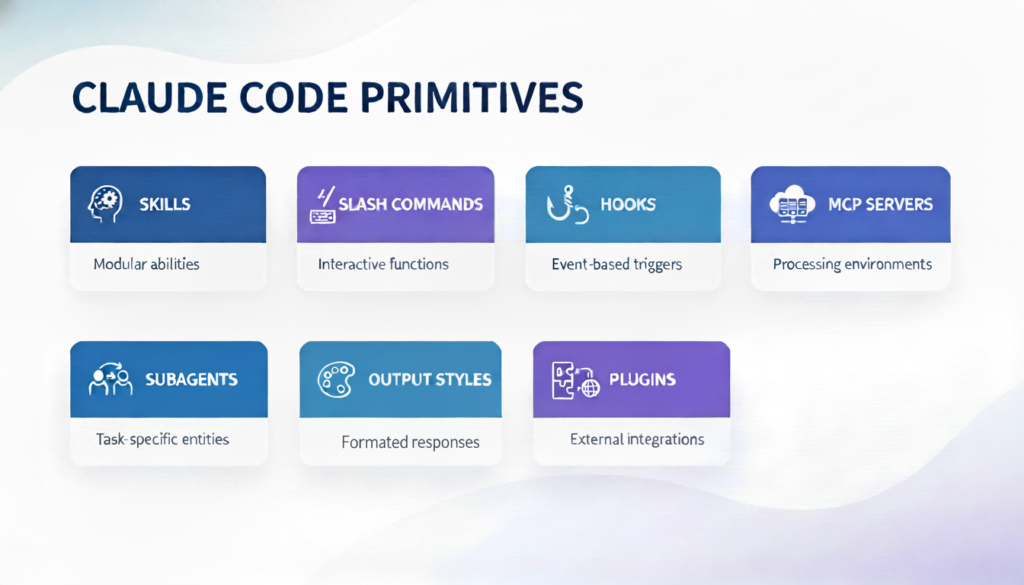
The seven Claude Code primitives you can use to extend and customize Claude’s behavior.
The Core Problem: Too Many Options
Claude Code’s flexibility is both its strength and its source of confusion. Each primitive serves a distinct purpose, but those purposes overlap in ways that aren’t intuitive:
- Skills and slash commands both store reusable instructions
- Hooks and MCP servers both integrate external tools
- Subagents and Skills both provide specialized expertise
- Plugins can contain any combination of the above
The documentation explains what each primitive is. What’s missing is when to use each one. Let’s fix that.
The Claude Code Primitives Decision Framework
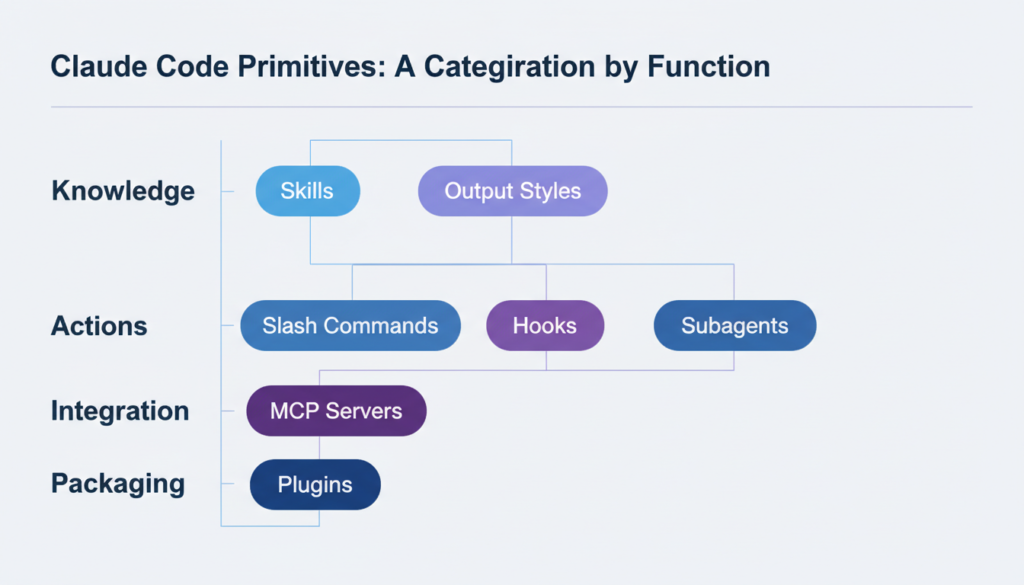
Here’s the mental model that will save you hours of confusion:
1. Who Decides When It Runs?
- You decide → Slash Command
- Claude decides → Skill
- Guaranteed execution → Hook
This is the single most important distinction. If you want direct control (like running a deployment or generating a commit message), use a slash command. If you want Claude to automatically apply knowledge when relevant (like coding standards or domain expertise), use a Skill.
If you need something to run every single time without fail (like auto-formatting), that’s a hook.
2. What Are You Trying To Do?
- Teach Claude knowledge → Skill
- Run a quick prompt → Slash Command
- Execute on lifecycle events → Hook
- Connect to external systems → MCP Server
- Delegate isolated work → Subagent
- Change Claude’s personality → Output Style
- Bundle multiple primitives → Plugin
Let’s break each of these down with real scenarios.
Skills: Teaching Claude What You Know
Use Skills when: You want Claude to automatically apply specialized knowledge based on context.
What Makes a Good Skill?
Skills shine when you have:
- Complex, multi-step workflows that should trigger automatically
- Domain expertise Claude should apply when relevant
- Team standards that should be consistently followed
- Reference material that needs to be available across projects
Real Examples
Good Skill candidates:
- Your PR review checklist (Claude applies it when reviewing code)
- Database schema and query patterns (Claude uses them when writing SQL)
- Security audit procedures (Claude applies them when asked about security)
- Your API documentation (Claude references it when building integrations)
Bad Skill candidates:
- “Generate a commit message” (you decide when, use a slash command)
- “Deploy to staging” (explicit action, use a slash command)
- “Format code on save” (deterministic, use a hook)
The Structure Advantage
Skills can span multiple files:
my-database-skill/
├── SKILL.md                    # Overview and quick reference
└── references/
    ├── schema.md               # Full schema documentation
    └── query-examples.md       # Common query patterns
Claude loads the overview (SKILL.md) to decide if it’s relevant, then loads the detailed files only when needed. This keeps the context clean while giving Claude access to comprehensive knowledge.
Slash Commands: You’re In Control
Use slash commands when: You know exactly when you want something to happen.
What Makes a Good Slash Command?
Slash commands work best for:
- Explicit actions you trigger at specific moments
- Quick templates you use frequently
- Project-specific workflows that don’t need complex structure
- Simple prompts that don’t warrant a full Skill
Real Examples
Good slash command candidates:
/commit          - Generate commit message from staged changes
/fix-issue 123   - Start work on a specific GitHub issue
/deploy staging  - Deploy current branch to staging
/optimize        - Analyze code for performance improvements
/summary         - Summarize today's changes
When to choose a slash command over a Skill:
- Explicit invocation: “I want to run this NOW” → slash command
- Automatic application: “Claude should know this when relevant” → Skill
- Single file simplicity: Slash command is one file, Skills can be multi-file
- Quick iteration: Slash commands are faster to create and test
Pro Tip: Start With Slash Commands
When in doubt, start with a slash command. If you find yourself running it constantly in situations where Claude should know to apply it automatically, promote it to a Skill.
Hooks: Guaranteed Execution
Use hooks when: You need deterministic behavior that runs every single time, no AI discretion.
What Makes a Good Hook?
Hooks are for rules that must never be skipped:
- Automatic formatting (run prettier after every edit)
- File protection (block writes to
.envfiles) - Logging and compliance (record all bash commands)
- Validation (check tests pass before commits)
Real Examples
Auto-format TypeScript on edit:
{
  "hooks": [
    {
      "event": "PostToolUse",
      "match": {
        "tool": "Edit",
        "file_pattern": "\.tsx?$"
      },
      "run": "npx prettier --write ${file_path}"
    }
  ]
}
Block edits to sensitive files:
{
  "hooks": [
    {
      "event": "PreToolUse",
      "match": {
        "tool": "Edit",
        "file_pattern": "\.env$"
      },
      "run": "echo 'Cannot edit .env files' && exit 1"
    }
  ]
}
Skills vs Hooks: A Key Distinction
- Skill: “Claude, please follow our formatting standards” (Claude decides how)
- Hook: “Run prettier after every edit” (guaranteed execution)
Use Skills to teach principles. Use hooks to enforce rules.
MCP Servers: External Connections
Use MCP servers when: You need to connect Claude to external APIs, databases, or services.
What Makes a Good MCP Server?
MCP servers excel at:
- Database access (PostgreSQL, MongoDB, etc.)
- API integrations (GitHub, Slack, Jira, etc.)
- Data sources (Notion, Google Drive, etc.)
- Custom company tools (internal APIs, specialized systems)
Real Examples
GitHub integration:
claude mcp add --transport stdio github \
  --scope project \
  --env GITHUB_TOKEN=your_token \
  -- npx -y @modelcontextprotocol/server-github
Now Claude can create PRs, review code, and manage issues directly.
PostgreSQL access:
claude mcp add --transport stdio postgres \
  --scope project \
  --env POSTGRES_URL=your_connection_string \
  -- npx -y @modelcontextprotocol/server-postgres
Claude can now query your database naturally: “Show me users who signed up this week.”
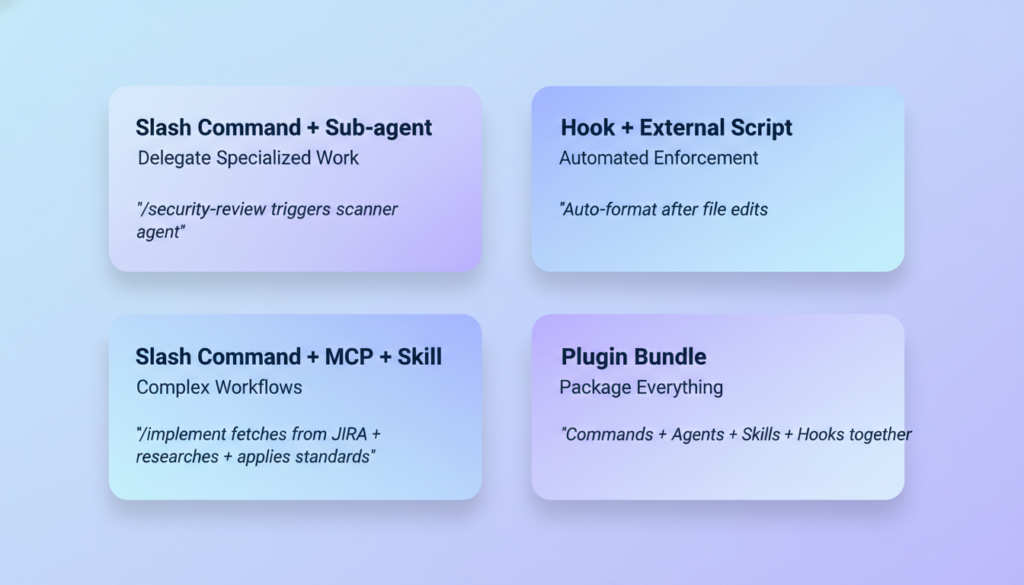
Skills + MCP Servers: A Powerful Combo
MCP servers give Claude access. Skills teach Claude how to use that access well.
Example:
- MCP Server: PostgreSQL connection
- Skill: Your database schema, query optimization patterns, and data access policies
Together, Claude can both query your database and follow your team’s best practices.
Subagents: Isolated Specialists
Use subagents when: You want to delegate work to a specialist with its own context and tool access.
What Makes a Good Subagent?
Subagents are perfect for:
- Task-specific workflows with different tool permissions
- Preventing context pollution (keep main conversation clean)
- Specialized expertise with focused instructions
- Parallel work on different aspects of a problem
Real Examples
Code Reviewer (read-only access):
name: code-reviewer
description: Reviews code for quality, security, and best practices
tools:
  - Read
  - Grep
  - Glob
model: sonnet
Test Runner (can fix failing tests):
name: test-runner
description: Runs tests and fixes failures automatically
tools:
  - Read
  - Edit
  - Bash
model: sonnet
When to Use a Subagent vs a Skill
Use a subagent when:
- The task needs isolated context (code review shouldn’t clutter main conversation)
- You want different tool permissions (reviewer can’t edit, test runner can)
- The work is delegatable and self-contained
Use a Skill when:
- Claude should apply knowledge in the current conversation
- The context should flow naturally with the main task
- It’s about teaching, not delegating
The Context Advantage
Subagents start with a clean slate. This prevents:
- Context bloat in your main conversation
- Confusion from mixing multiple tasks
- Token limits from long transcripts
When the subagent finishes, it returns just the result, not the entire process.
Output Styles: Changing Claude’s Personality
Use output styles when: You want Claude Code to behave fundamentally differently for specific use cases.
What Makes a Good Output Style?
Output styles work best when:
- Using Claude Code outside software engineering (writing, research, data analysis)
- Teaching and learning (collaborative exploration)
- Adapting communication style (terse vs explanatory)
Real Examples
The built-in “Learning” output style:
- Adds
TODO(human)markers for concepts to explore - Explains why decisions are made, not just what to do
- Encourages experimentation and understanding
A custom “Data Scientist” output style might:
- Focus on statistical rigor
- Always show your work (calculations, assumptions)
- Suggest alternative analytical approaches
When NOT to Use Output Styles
Don’t use output styles for:
- Project-specific coding standards (use Skills)
- Workflow automation (use slash commands or hooks)
- External integrations (use MCP servers)
Output styles are for fundamentally changing how Claude thinks and communicates, not what Claude knows or what Claude can do.
Plugins: Bundling It All Together
Use plugins when: You want to package and distribute multiple primitives as a cohesive unit.
What Makes a Good Plugin?
Plugins shine for:
- Team standards (shared across all projects)
- Domain-specific toolkits (security, data science, etc.)
- Community distributions (share with others)
- Versioned releases (controlled updates)
Real Example: Security Audit Plugin
security-audit-plugin/
├── .claude-plugin/
│   └── plugin.json
├── skills/
│   ├── security-checklist/
│   └── vulnerability-patterns/
├── agents/
│   └── security-reviewer.md
├── commands/
│   └── audit.md
└── hooks/
    └── hooks.json  # Block commits with hardcoded secrets
Install once, get:
- Security knowledge (Skills)
- Dedicated reviewer (Subagent)
- Quick audit command (slash command)
- Secret prevention (Hook)
Sharing With Your Team
Project scope (.mcp.json, .claude/):
- Check into git
- Everyone gets the same setup
- Project-specific configurations
Plugin scope:
- Distribute via marketplace or URL
- Version controlled
- Namespaced to prevent conflicts
The Decision Tree
Here’s a quick reference for choosing the right primitive:
Do you need external API/database access?
└─ Yes → MCP Server
└─ No ↓
Should this run on EVERY occurrence (no AI discretion)?
└─ Yes → Hook
└─ No ↓
Do you want Claude to decide WHEN to apply this?
└─ Yes → Skill
└─ No ↓
Are you delegating isolated work with its own context?
└─ Yes → Subagent
└─ No ↓
Do you want to change Claude's fundamental behavior?
└─ Yes → Output Style
└─ No ↓
Is this a quick prompt you trigger explicitly?
└─ Yes → Slash Command
Are you packaging multiple primitives for distribution?
└─ Yes → Plugin
Common Scenarios, Solved
Let’s apply this framework to real situations:
“I want Claude to follow our TypeScript style guide”
- Option 1: Skill (Claude applies it automatically when writing TS)
- Option 2: Hook (Auto-format with prettier after every edit)
- Best answer: Both
- Skill teaches principles (naming, patterns, architecture)
- Hook enforces formatting (guaranteed consistency)
“I need to deploy to staging frequently”
- Wrong: Skill (you decide when, not Claude)
- Wrong: Hook (not a lifecycle event)
- Right: Slash Command (
/deploy staging)
“Claude should review PRs before I submit them”
- Option 1: Skill (teach review criteria, Claude applies in conversation)
- Option 2: Subagent (dedicated reviewer with isolated context)
- Best answer: Subagent
- Keeps review separate from implementation
- Can have restricted tool access (read-only)
- Returns clean summary without cluttering main chat
“I want to query our production database naturally”
- Wrong: Skill alone (Claude has no database access)
- Wrong: Slash Command (needs actual database connection)
- Right: MCP Server + Skill
- MCP Server: PostgreSQL connection
- Skill: Schema, query patterns, access policies
“Every bash command should be logged for compliance”
- Wrong: Skill (Claude might forget)
- Wrong: Slash Command (you’d have to remember to run it)
- Right: Hook (PostToolUse on Bash tool)
Start Simple, Grow Strategically
Here’s how to approach Claude Code customization without overwhelming yourself:
Phase 1: Quick Wins
Start with slash commands. They’re the easiest to create and test. Pick your three most common prompts and turn them into commands.
Examples: /commit, /review, /summarize
Phase 2: Automation
Add hooks for things that should happen automatically every time.
Examples: Auto-format on save, block sensitive file edits
Phase 3: Knowledge
Convert your most-used slash commands to Skills if you find Claude should be applying them automatically.
Example: /api-docs command → API documentation Skill
Phase 4: Integration
Add MCP servers to connect Claude to your actual tools and data.
Examples: GitHub, your database, Slack
Phase 5: Specialization
Create subagents for complex, isolated workflows.
Examples: Code reviewer, test runner, security auditor
Phase 6: Distribution
Bundle everything into a Plugin to share with your team or the community.
The Bottom Line
Claude Code’s primitives aren’t confusing because they overlap. They’re powerful because they compose. Each one handles a specific type of problem:
- Skills: Teach knowledge (Claude decides when)
- Slash Commands: Quick actions (you decide when)
- Hooks: Guaranteed rules (always executes)
- MCP Servers: External connections (APIs, databases)
- Subagents: Isolated specialists (separate context)
- Output Styles: Personality changes (fundamental behavior)
- Plugins: Packaged distributions (sharing bundles)
Start with the decision framework: Who decides when it runs? What are you trying to do? The right primitive will become obvious.
And remember: when in doubt, start simple. A slash command is easier to create than a Skill. A Skill is lighter than a subagent. Build complexity only when you need it.
Want to dive deeper? Check out the official Claude Code documentation for implementation details, examples, and advanced patterns.